

 Home
Home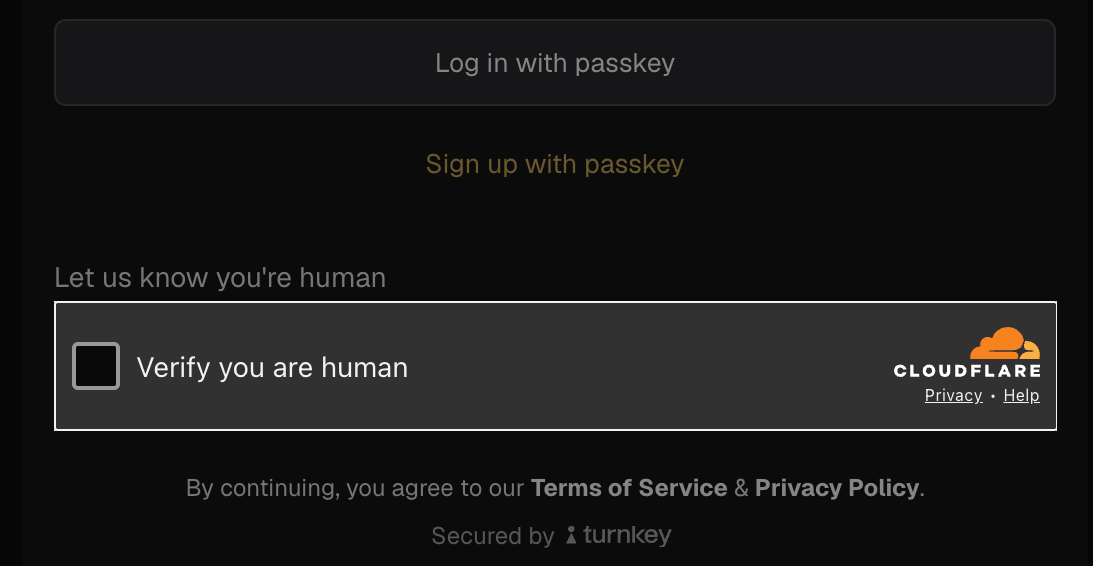
- Requesting an email or SMS OTP: captcha is required when the code is sent, covering both signup and login flows.
- Signing up a new user: captcha is required when creating a new sub-org via passkey, OAuth / social login, or external wallet.
Enabling Captcha
Captcha protection is configured at the organization level in the Turnkey Dashboard. Once enabled, it is automatically enforced for the protected flows.Automatic enforcement applies only to
@turnkey/react-wallet-kit users. The Turnstile widget is rendered and captcha tokens are attached for you, no code changes required.If you build your auth UI directly on @turnkey/core (plain JavaScript, TypeScript, Vue, Svelte, Angular, or a custom React UI), you must integrate captcha yourself: render the Turnstile widget, obtain a token, and pass it to the relevant SDK methods. See the integration guides below for your setup.1
Open your Embedded Wallets Configuration
Log in to the Turnkey Dashboard and navigate to Configuration for Embedded Wallets.
2
Find the Captcha toggle
Locate the Captcha setting in the Auth Proxy section.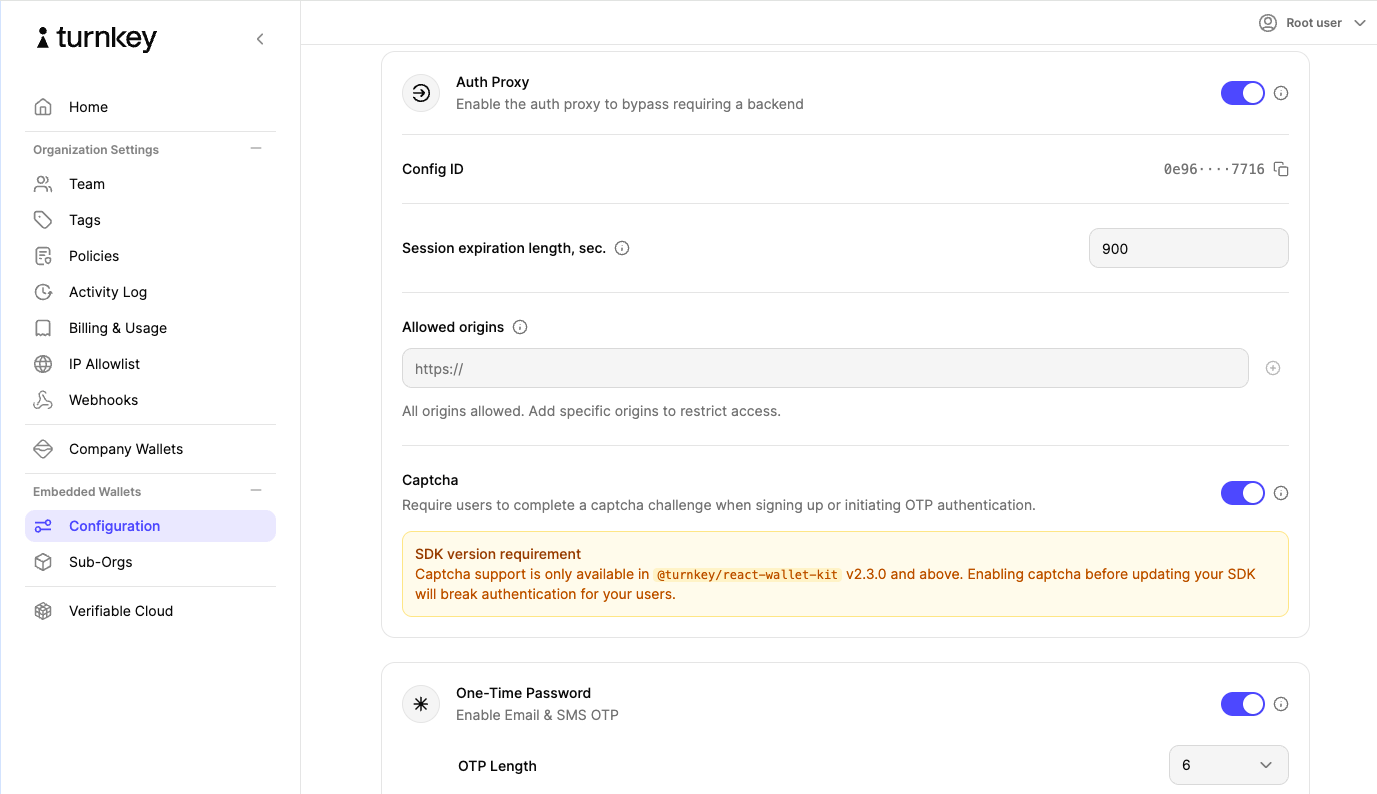
3
Enable Captcha
Toggle the setting on and save your changes. Captcha protection is now active for your organization.
Changes take effect immediately for all traffic. Confirm every client session is on a supported SDK version before enabling. Older SDKs will not be able to sign up new users or send OTP codes once captcha is turned on.
Integration guides
How much work Captcha takes depends on which SDK renders your auth UI:
In every case the mechanics are the same: Turnstile runs its challenge when a user initiates a protected flow, issues a token on success, and Turnkey verifies that token before creating any auth activity. Requests that fail the challenge are rejected outright.